Table of Contents
Choosing the Clover Flex for Your Payment Processing Needs
For businesses that require true mobility without sacrificing capability, the new clover flex POS is a portable, all-in-one point-of-sale terminal that combines a vivid touchscreen, built-in receipt printer, and integrated card reader in a single handheld device. According to The POS Brokers product specifications, the Flex terminal connects over Wi-Fi or cellular data so you can process payments and manage inventory virtually anywhere—no hardwired network required. Whether you operate a full-service restaurant, a counter-service model, a mobile business, or e-commerce with in-person pop-up events, our Clover mobile POS device delivers reliable on-the-go transactions.
Security is built into every interaction. The Clover Flex terminal employs end-to-end encryption and EMV chip compatibility, aligning with industry standards promoted by the Smart Payment Association and best practices outlined by the US Payments Forum. These measures help safeguard each transaction while giving your customers confidence at the point of sale. In addition, Clover’s hardware and software ecosystem means the Flex integrates seamlessly with the broader suite of Clover products, creating a unified payment processing environment that grows with your business.
We offer competitive rates on our Clover Flex placements, and qualifying merchants may receive free or discounted hardware—merchant must qualify for free or discounted hardware. Contact our team to see if you are eligible. Your partner for better payment processing.
Preparing to Deploy Your Clover Flex Terminal
Now that you understand the benefits of the Clover Flex, let’s ensure your deployment goes smoothly. A few critical checks before activation will help you avoid delays and start processing payments with confidence.
Your first step is to confirm network and power readiness. As a mobile credit card reader, the Clover Flex requires a stable Wi-Fi connection or cellular data plan to process transactions. We recommend testing your IP connectivity and fully charging the terminal with the included power adapter and dock before its first use.
Next, verify that your merchant account is active and provisioned for the Clover Flex. Our team at POS Brokers manages this process, but you should confirm with us that everything is configured on the back end before you power on your device.
Hardware inspection is equally important. Carefully unpack the terminal and ensure all accessories—the charging dock, power adapter, and cables—are present and undamaged. Report any missing items to our support team as soon as possible to prevent setup delays.
We’ll help you qualify for a free Clover Flex placement, though eligibility requirements apply and shipping carriers may occasionally cause delivery delays. Additionally, you should review the latest EMV and contactless compliance standards to ensure your location protects cardholder data. For detailed payment terminal selection guidelines, the Smart Payment Association provides authoritative industry recommendations.
Once these pre-deployment checks are complete, you are ready to power on and configure your terminal. As your partner for better payment processing, we are here to make every step straightforward and secure.
Unboxing Your Clover Flex and Checking Hardware
Once your Clover Flex arrives, open the box carefully and verify all components are present. As a mobile credit card reader, the Clover Flex terminal is compact and should arrive in pristine condition with everything you need to get started.
- Clover Flex terminal with 5-inch touchscreen and built-in printer
- Charging cable and power adapter
- Quick start guide with setup instructions
- Receipt paper roll (included in the terminal)
If you ordered the clover flex four pack POS, verify that all four terminals, four chargers, and four cables are included along with a multi-unit quick start guide. For the New 2026 single unit from The POS Brokers, confirm the updated design is intact and the charging dock or cable is present. Inspect the terminal screen, buttons, charging port, and card reader slot for any cracks, scratches, or loose parts. We recommend plugging in the terminal briefly to verify the charging LED illuminates and the screen powers on. Keep all packaging materials in case you need to make a return or exchange. After verifying the hardware, you are ready for setup – proceed to the next section.
Connecting Your Clover Flex to Wi-Fi
Once your Clover Flex is powered on and ready, connecting it to a stable Wi-Fi network is the next essential step for reliable payment processing. Follow these instructions to get the device online securely.
- On the Clover Flex home screen, tap the gear icon to open the Settings menu.
- Select Wi-Fi from the list, then choose your desired network. Ensure your router operates on the 2.4 GHz band for compatibility with this mobile credit card reader.
- Enter your Wi-Fi password using the on-screen keyboard and tap Connect.
- Verify the connection by looking for the Wi-Fi icon in the status bar at the top of the screen.
If the Flex fails to connect, confirm your password is correct, check that your router uses WPA2 encryption, and ensure the signal strength is adequate. A dependable network connection is critical for processing EMV chip transactions and maintaining the data security requirements defined by the PCI Security Standards Council. We recommend validating the connection before you begin configuring your payment settings.
Configuring Payment Processing Settings on Clover Flex
Once the hardware is set up, you can tailor payment processing on the Clover Flex by tapping the settings icon and selecting Payment Processing. We recommend starting with card brand selection — toggle Visa, Mastercard, Amex, and Discover to match US Payments Forum interoperability best practices.
- Enable EMV chip and NFC contactless payments, including Apple Pay and Google Pay, for faster, encrypted transactions.
- Set receipt preferences to digital, printed, or both, and turn on tip prompts at checkout to improve customer service.
- Unlike a mobile credit card reader, the Clover Flex keeps all configurations on-device, reducing external dependencies.
Per Consumer Financial Protection Bureau guidance, any surcharges or convenience fees must be clearly displayed during checkout. For a detailed look at how Clover Flex stacks up against other options, see our mobile credit card reader comparison. As your partner for better payment processing, we ensure your terminal is configured for success and compliance. Free Clover placements require merchant qualification.
Testing Your First Transaction and Receipt Output
Once your Clover Flex is set up and connected to your merchant account, it’s time to test your first transaction. We recommend initiating a test using your device’s built-in mode or a test card to avoid any actual charges. Choose a small amount like $1.00 and run the payment once via contactless, once via chip, and once via swipe to confirm all interfaces work. For contactless testing, you can refer to official mobile card reader Apple Pay specifications to ensure your compliant Clover Flex processes tap payments correctly.
After each transaction, inspect the printed receipt for accuracy. The output should clearly show your merchant name, a transaction ID, the amount, the date and time, and the card type—with the last four digits masked alongside an authorization code. If the receipt is missing data or does not print at all, check the printer’s connections and paper supply, then re-test until results are consistent. Ready to process live payments?
Setting Up Tableside Ordering with Clover Flex
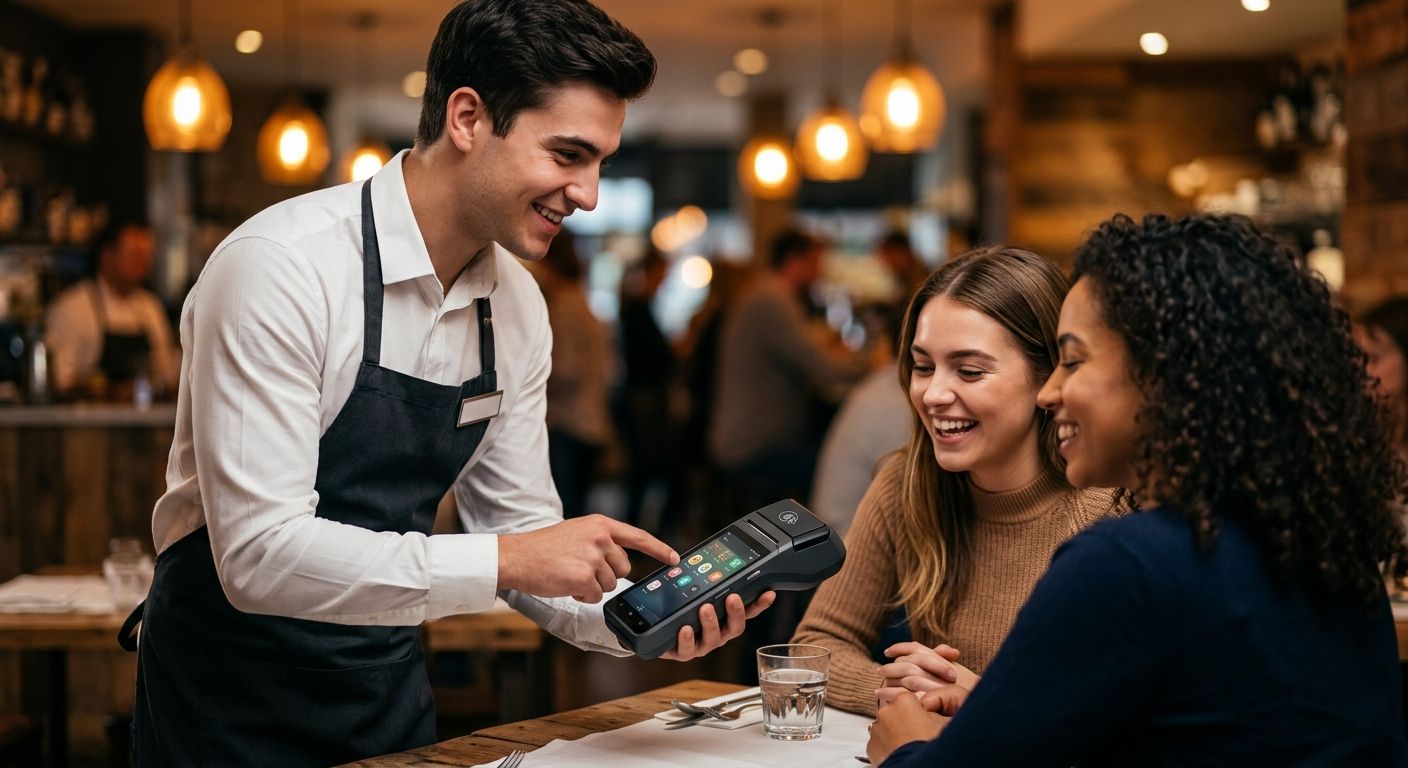
We make it simple to begin tableside ordering with the Clover Flex, so your staff can take orders and accept payments directly at the table without delay. First, unbox your Clover Flex and ensure the device is fully charged. Connect it to the same Wi-Fi network that your main Clover station uses, as a stable connection is essential for real-time syncing. From the Clover Dashboard on your main station, navigate to Devices and select Add Device, then follow the prompts to pair your Clover Flex via Wi-Fi.
Next, activate the tableside ordering feature to integrate ordering and payments. On your Clover Flex, open the Apps menu, locate Tableside Ordering, and toggle the feature on. Your staff can now send orders directly to the kitchen and process card payments using the handheld terminal. For on-the-spot receipts, a compatible mobile receipt printer, such as a Clover Mini or Star printer, can be paired over the same network. The POS Brokers provides the necessary hardware, from single units to packages like the Clover Flex Dual Package that support growing teams.
After setup, we recommend running a sample transaction to confirm the flow works correctly. Test an order from the table, send it to the kitchen, and complete a payment. With your Clover Flex fully configured, you can speed up table turns and give guests a faster, more attentive experience. Ready to bring tableside ordering to your restaurant? Contact The POS Brokers today—Your partner for better payment processing.
Implementing the Cash Discount Program on Clover Flex
Once you understand the benefits, the path to launching the Cash Discount Program on your clover flex is straightforward. You will first need the terminal itself—our Clover Flex Triple Pack is a robust mobile credit card reader ideal for this program. Next, contact The POS Brokers, your partner for better payment processing, and we will activate the program on your new or existing Clover Flex account. A high-level configuration step involves enabling the non-cash adjustment in your Clover dashboard, which our team handles for you. Legally required customer signage on your storefront and receipts is crucial, and we ensure all materials are compliant with Consumer Financial Protection Bureau guidelines. Ready to start? Click here to qualify for your free Clover Flex placement and begin enjoying the program’s advantages. After setup, merchants can monitor savings and adjust settings as needed.
Extending Clover Flex Battery Life and Adding Accessories
Beyond its core features, you can get even more from your Clover Flex by adopting a few simple power-saving habits. Reduce screen brightness and set a shorter auto-timeout so the device isn’t consuming energy when it is idle. Many businesses improve battery life by turning off Wi-Fi and Bluetooth during periods when they are not actively processing transactions.
Always place your payment reader in the included charging dock when it is not in use, and avoid leaving it plugged in after it reaches a full charge. For businesses running long shifts or operating away from a power outlet, we offer spare batteries and external power banks designed specifically for the Clover Flex. Our Clover Flex Dual Package bundles an extra battery, a charging dock, and a protective carrying case so you have everything you need in one convenient purchase.
It is just as important to remember that any accessory you add—whether a stand, a case, or a charging cable—must preserve PCI compliance. The PCI Security Standards Council publishes the requirements that govern payment device security, and using a non-certified peripheral can introduce risk. With these accessories, your Clover Flex is ready for any setting. We are your partner for better payment processing—contact us to find the right Clover Flex accessories for your business.
Resolving Common Clover Flex Challenges
Even with its robust design, you may occasionally encounter operational hiccups with your Clover Flex terminal. While this portable reader is engineered to meet stringent PCI Security Standards Council data security requirements, understanding a few basic troubleshooting steps can keep your business running smoothly. The POS Brokers support team can assist with persistent issues.
One common challenge is Wi-Fi connection instability. If your Clover Flex frequently drops its network, we recommend first resetting the device’s network settings or moving it closer to your router to improve signal strength. For businesses on the go, enabling the terminal’s mobile data backup can provide a seamless transaction flow when a local network falters. Like any mobile credit card reader, environmental interference can occasionally disrupt service.
Battery performance is another key area. If you notice the battery draining quickly during peak hours, calibrating it monthly can help maintain accurate charge readings. Additionally, turning off unused features such as maximum brightness and loud system sounds will extend operating time between charges. These small adjustments ensure your device lasts through the busiest shifts without needing a midday charge.
Physical card reader errors also arise from time to time, particularly when an EMV chip fails to read. We advise first verifying the correct chip insertion method, as improper orientation is a frequent culprit. If the issue continues, gently cleaning the reader slot to remove dust or debris often resolves the problem. According to EMVCo, adhering to proper chip card acceptance procedures ensures reliable transactions, while general best practices for terminal maintenance are also shared by the Smart Payment Association.

Three-step troubleshooting guide for Clover Flex issues.
Should challenges persist, merchants can contact our team for personalized, hands-on assistance. This level of support is just one facet of the value included in our flexible packages, ensuring you get the most from your payment hardware.
Maximizing Your Payment Processing with Clover Flex
Beyond its core features, the real value of Clover Flex emerges when you deploy multiple units across your operation. High-traffic businesses, from bustling restaurants to busy retail stores, discover that equipping staff with several Clover Flex devices transforms their payment processing workflow. Unlike a stationary terminal or a single mobile reader, multiple Flex units allow your team to accept payments anywhere in the venue, reducing wait times and improving the overall customer experience.
Portability is only part of the advantage. When you choose our Clover Flex Triple Pack POS bundles, you gain access to competitive wholesale rates with no setup fee and no cancellation fee. We also offer free Clover hardware placements for qualifying merchants, which significantly lowers the upfront investment required to scale your operations. Our dedicated support and reliable US-based shipping ensure your business stays equipped without interruption. While many businesses explore other mobile credit card readers for their needs, the versatility and robust feature set of Clover Flex, combined with our cost-saving bundles, makes it a superior choice for growing businesses across the United States.
Explore the Clover Flex Triple Pack or Four Pack bundles today. Your partner for better payment processing is ready to help, and a merchant must qualify for free hardware.
Resources
- Get a Free Clover Flex Four Pack with Lifetime Warranty
- Get Free Clover Flex Triple Pack with Lifetime Warranty
- Get New Clover Flex POS with Free Lifetime Warranty
- Get Free Clover Flex Dual Package with Lifetime Warranty
- Explore Clover POS Systems with Free Lifetime Warranty
- Find Free POS Systems and Consultation for Business
- Browse Clover POS Hardware with Free Lifetime Warranty
- Join the Smart Payment Association for Payment Terminal Guidance
- Find Mobile Credit Card reader Comparisons from US Payments Forum
- Explore EMVCo Mobile Card Reader Specs for Apple Pay
- Find Mobile Card Reader Hardware Cost Guidance from CFPB
- Explore PCI Standards for Mobile Card Reader Android Security