Table of Contents
Getting Started with Square Card Reader
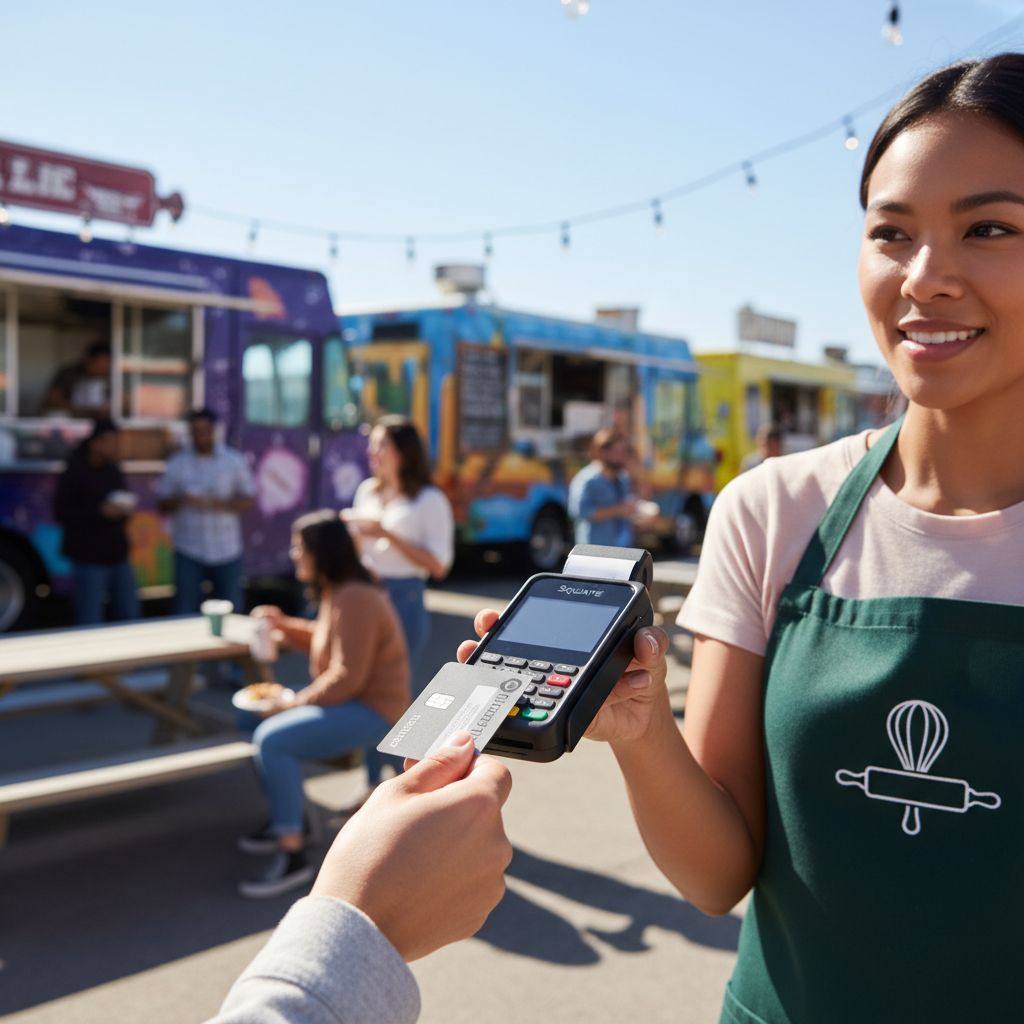
Struggling with clunky payment setups at your food truck or market stall? The Square Card Reader offers a compact, affordable solution for small and mid-size US merchants, transforming smartphones and tablets into versatile POS systems.
This portable Square payment device connects via Bluetooth for seamless swipe, dip, chip (EMV), and tap processing, with no monthly fees and just a 3.5% transaction rate. Ideal for mobile sellers and event-based businesses, it integrates with the reliable Square platform—squareup’s backend—for secure, app-based transactions. New accounts often qualify for a free reader, shipped US-wide by providers like The POS Brokers.
Key Benefits:
- Effortless plug-and-play setup with the Square app.
- Quick processing for faster customer lines.
- For detailed device options and compatibility, see the square hardware comparison.
- Scalable ecosystem for inventory and reporting, unlike basic Clover or Revel setups.
This guide walks you through preparation, setup, usage, optimization, and troubleshooting—empowering cost-effective decisions before scaling to integrated POS systems. Before you begin, ensure your device meets basic compatibility requirements.
Before You Begin
Before implementing the Square Card Reader, assess your business needs to ensure it aligns with your operations. Consider your business type: high-volume retail stores may benefit from its quick swiped transactions at 2.6% + 10¢ per sale, while low-volume events could leverage its portability. Ask yourself: Do you process under 50 transactions daily? Will you integrate with existing inventory systems? For small to mid-size US retailers and restaurants, this evaluation confirms if Square fits your payment processing requirements, building confidence in your choice.
Next, verify device compatibility to avoid setup frustrations. Square supports iOS and Android 10 or later, as outlined in their hardware comparison, with connectors like USB-C and Lightning for seamless connections. Use this checklist:
- Confirm your smartphone or tablet runs compatible OS versions.
- Check for Lightning or USB-C ports on your device.
- Ensure stable internet via Wi-Fi or cellular for real-time processing.
Squareup’s PCI-compliant encryption keeps transactions secure, addressing concerns about legitimacy with widespread US merchant adoption. The Square payment gateway integrates easily with broader POS ecosystems, but warn against mismatches like poor internet areas that could disrupt service.
Explore alternatives like the Clover Mini for advanced inventory features or Lavu for restaurant-specific tools—see top rankings among best card readers small business for mobile options. The POS Brokers offers free hardware eligibility to lower costs.
Gather essentials:
- Compatible smartphone or tablet.
- Stable internet connection.
- Backup power source.
With your device ready, proceed to unboxing and connecting for smooth setup.
Unbox and Prepare Your Device
Begin your journey with the Square Card Reader by carefully unboxing and preparing it for use. This simple process ensures your device is ready to accept payments seamlessly, highlighting Square’s plug-and-play design that outshines more intricate POS systems like Revel.
Step-by-Step Instructions
- Open the packaging and remove the Square Card Reader, USB charging cable, and quick start guide. The compact reader resembles a small dongle designed for easy attachment to your mobile device.
- Inspect all components for any signs of damage, such as dents or frayed cables. Handle electronics gently to avoid static discharge or physical harm.
- Connect the cable to charge the reader if the battery is low; it typically holds a charge for hours of use. For US merchants, the included adapter suits standard outlets.
- Pair the Square Card Reader with your smartphone via Bluetooth: enable Bluetooth in settings, open the Square app, and follow on-screen prompts to connect securely. This setup takes under a minute.
Proper preparation prevents common setup frustrations and keeps your business running smoothly. By verifying everything upfront, you avoid delays during peak hours that could cost sales in a competitive retail environment.
- Confirm your phone’s OS (iOS or Android) is compatible with the latest Square app version.
- Test the reader on a sample card post-setup to ensure functionality.
- Keep the manual handy for reference, and note that US power specs match the device’s 5V output.
With your Square Card Reader prepared, proceed to Step 2: downloading the Square Point of Sale app for full integration.
Download the Square App
After unboxing your Square Card Reader, the next step is downloading the Square Point of Sale app, which serves as the digital brain for processing mobile payments. This app integrates seamlessly with your Square Card Reader to accept credit and debit cards on the go, making it ideal for US merchants in retail or food services.
To get started, open the App Store on iOS or Google Play Store on Android and search for “Square Point of Sale.” Download and install the latest version to ensure compatibility with the squareup platform. During installation, grant necessary permissions for location to comply with payment regulations and camera access for scanning checks or IDs. Upon first launch, you’ll see a welcoming screen outlining quick setup options—follow the prompts to pair your device.
The app is essential because it enables full functionality of the Square Card Reader, handling transactions, inventory tracking, and sales reports in one interface. Unlike more complex app-heavy systems like Lavu, Square’s setup is straightforward, minimizing downtime for busy operations.
Before downloading, update your device’s operating system to avoid compatibility issues. If you encounter errors, restart your phone or clear the app store cache for a smooth install. Once the app is ready, proceed to creating or linking your Square account to activate payments.
Create Your Square Account
After installing the Square app on your mobile device, the next step is creating your account to start accepting payments securely. Begin by signing up with your business email or phone number on squareup.com. Enter essential business details, including your company name, Employer Identification Number (EIN), and physical address. For verification, upload identity documents and link your Square Card Reader to confirm device compatibility—this ensures seamless mobile transactions tailored for US small merchants. Finally, set up your banking information for direct deposits, exploring alternatives like the smartswipe pos system for enhanced POS integration with advanced banking options.
This process builds trust by adhering to strict security protocols, confirming squareup’s legitimacy as a reliable payment processor. Squareup meets PCI compliance standards for data protection, safeguarding customer information from the outset. It addresses cost transparency upfront, with no setup fees or hidden charges during account creation, allowing you to focus on your business without surprises.
Use a dedicated business email for account setup to maintain professionalism and easy access to communications. Double-check all entered information for accuracy to avoid delays in verification. Always enable two-factor authentication right away to bolster account security against potential threats.
Connect the Reader
With your Square account set up, the next step is linking the Square Card Reader to the Square app for seamless transactions. This hardware integration via Bluetooth or audio jack prepares you for immediate card swipes, bridging your account to real-world payments.
Pairing Instructions
Begin by enabling Bluetooth on your mobile device through settings. Open the Square Point of Sale app and navigate to the hardware section. Select your Square Card Reader from the list of available devices. If prompted, enter the pairing code displayed on the reader. For audio jack connections on older devices, simply plug in the reader—no code needed. Test the connection by swiping a test card; look for the green light or confirmation sound indicating success.
This process ensures reliable swipes, minimizing transaction errors compared to wired alternatives like Clover Go. A stable link guarantees quick processing, vital for busy retail environments.
Connection Tips
Keep your phone and reader within 30 feet for optimal Bluetooth performance. If issues arise, restart both devices or consult Square’s how-it-works guide for troubleshooting previews. Visual cues like the reader’s LED lights provide instant feedback on connection status.
Process Your First Payment
Now that your Square device is connected, it’s time to process your first transaction using the Square Card Reader. This step simulates real US merchant scenarios, like ringing up a coffee sale at a local cafe. Begin by entering the transaction amount on your mobile app or terminal. Next, select the payment method—whether credit, debit, or contactless. For dipping or swiping, insert the chip-enabled card into the Square Card Reader or slide the magnetic stripe. For tapping, simply hold the contactless card or phone near the reader. Squareup handles the secure processing in just seconds, matching industry benchmarks for speed from hardware comparisons. Once approved, confirm the details and email or print the receipt for your customer. This straightforward flow ensures seamless payments for small businesses.
Mastering this builds confidence in handling everyday sales without hesitation, knowing your setup works reliably from the start. It empowers you to focus on customer service rather than technical worries.
For tips, always verify the card details if a decline occurs—common for insufficient funds—and retry or offer alternatives like cash. In higher-volume setups, consider options like the clover flex four pack for multiple readers to manage busy lines efficiently. Practice with a test transaction to get comfortable before going live.
Customize Settings
After setting up payments with your Square Card Reader, the next step involves tailoring the app’s settings to fit your business operations. Open the Square app on your device and tap the menu icon (three lines) in the top left corner. From there, navigate to ‘Settings’ to access options for taxes, receipts, and notifications. Begin by selecting ‘Taxes’ to add custom rates—enter your state’s sales tax percentage, such as 8.25% for California retailers. Next, under ‘Receipts,’ enable email delivery by toggling the option and customizing the message template with your business logo. For deposit schedules, go to ‘Account & Settings’ > ‘Business Information’ and choose daily or instant deposits to match your cash flow needs.
Customizing these settings optimizes your workflow by automating compliance and customer communication, reducing manual errors and saving time during busy shifts. For a food truck operator, quick email receipts build loyalty, while restaurants benefit from accurate tax calculations to avoid audits.
To ensure US tax compliance, verify rates against current IRS guidelines and update quarterly. Business owners should test settings with sample transactions. For future-proof settings amid evolving payment tech, explore best card readers 2025 to stay ahead in integrations.
Integrate with Existing POS
The final step in setting up your Square Card Reader involves linking it to existing POS software for unified inventory, sales, and reporting tailored to US operations. Begin by exploring Square APIs on the squareup developer platform, which enable seamless connections to systems like QuickBooks. Download the free Square app, authenticate your account, and configure API keys to sync transaction data. Test the integration by processing sample payments and verifying data flow to your POS dashboard. For custom needs, consult POS brokers who can handle advanced setups.
This integration streamlines operations by centralizing data, reducing errors, and supporting business growth without manual reconciliation.
Seamless POS integration is crucial for scaling, as it eliminates data silos and enables real-time insights for mid-size merchants handling increased volumes.
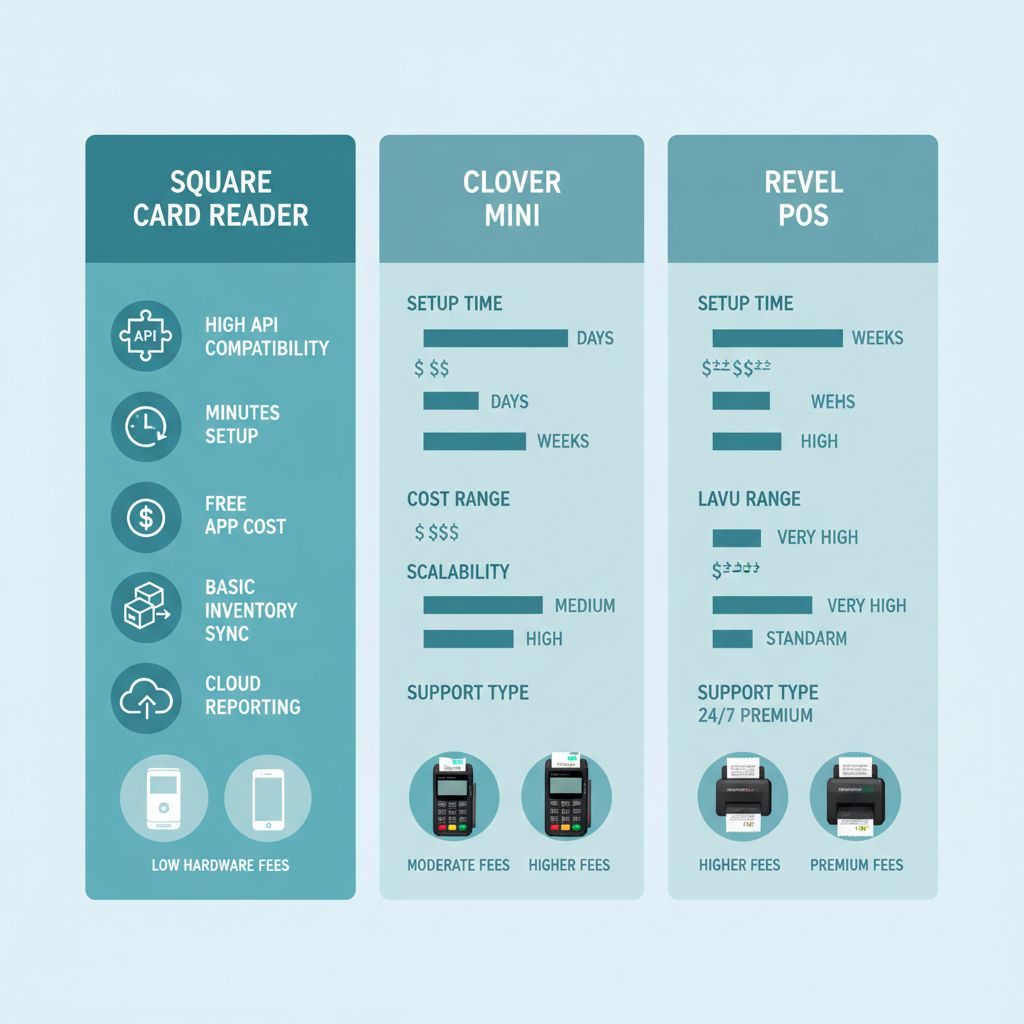
Comparison of Square vs alternative POS systems integration
The following table compares Square Card Reader integration ease with alternatives like Clover, Lavu, and Revel:
| Feature | Square Card Reader | Clover Mini | Lavu | Revel |
|---|---|---|---|---|
| API Compatibility | High via Square APIs | Excellent ecosystem | Restaurant-focused | Enterprise-grade |
| Setup Time | Minutes | Hours | Days | Weeks |
| Cost | Free app | $295+ hardware | Subscription + hardware | High initial |
| Inventory Sync | Basic | Advanced | Full kitchen | Comprehensive |
| Reporting | Cloud-based | Robust | Detailed sales | Analytics suite |
| Hardware Needs | Reader only | Terminal + reader | iPad + peripherals | Full stations |
| Scalability | Good for small | High for mid-size | Multi-location | Large chains |
| Support | 24/7 chat | Dedicated advisor | Email/phone | On-site |
| Fees | 2.6% + 10¢ | Custom rates | 2.75% + subscription | Negotiable |
| Free Hardware | Eligible | Discounted options | Bundled placements | Volume deals |
For alternatives, consider the clover mini flex combo which offers deeper integration for growing operations. As per the card readers comparison 2025, Square excels in simplicity for small businesses with reliable APIs, while Clover provides advanced depth for mid-size scalability—though watch API limits for high-volume use. Test thoroughly to avoid sync issues, then proceed to troubleshooting common glitches.
Troubleshooting Common Issues
Running a business means dealing with occasional hiccups, and with the Square Card Reader, issues like connection drops or declined transactions can disrupt sales. As a reliable tool for small US merchants, the Square Card Reader integrates seamlessly with the Square app, but when problems arise, quick fixes can get you back to processing payments efficiently. Understanding these common challenges empowers you to resolve them without downtime, ensuring smooth operations for your POS systems.
Bluetooth Connectivity Problems (around 40 words): Frequent with Square Card Readers, symptoms include intermittent pairing or signal loss beyond 30 feet. Fixes: 1. Re-pair the device via Square app settings. 2. Keep it within range and away from interference like microwaves. For parallels, exploring a uk card readers comparison highlights similar connectivity variances across devices.
Payment Declines and Errors (about 35 words): Often due to weak signals, unsupported card types, or fee-related mismatches. Symptoms: Transactions fail mid-swipe. Fixes: 1. Check network strength. 2. Verify card compatibility—EMV chips work best. 3. Review Square’s fee structure to avoid surprises.
App Crashes and Battery Drain (around 25 words): Glitches from outdated software or low power. Fixes: 1. Restart the app or device. 2. Update to the latest Square version. For battery, charge fully before shifts and disable unused features.
If issues persist, contact Square support through squareup channels for personalized escalation. Prevention tips (50 words): Regularly update firmware, maintain 20% battery minimum, and test connections pre-shift. For high-volume needs, consider upgrading to more stable integrated POS like the ingenico ict 220 terminal with an MTBF over 500,000 hours or the dejavoo qd4 terminal boasting similar reliability, reducing troubleshooting frequency in busy environments.
Optimizing Your Square Card Reader
Optimizing your Square Card Reader begins with a seamless setup that streamlines transactions for small US merchants. By connecting via Bluetooth to your mobile device, downloading the Square app, and swiping or tapping cards, you achieve instant processing with minimal hassle. This efficient workflow reduces checkout times, enhances customer satisfaction, and boosts daily sales volume without complex configurations.
The true value lies in its accessibility: free hardware upon approval and competitive low fees starting at 2.6% plus 10 cents per transaction make it ideal for startups and mobile businesses. It supports contactless payments, integrates with inventory tracking, and provides real-time reporting, empowering you to focus on growth rather than overhead. Regular updates from squareup ensure your system stays secure and feature-rich, adapting to evolving needs.
As your business scales, consider advancing to full POS solutions like Clover for robust features. Upgrade with the clover go mobile reader for versatile handheld processing, add a clover mini plus barcode scanner for faster inventory, incorporate a clover mini x2 screen for customer engagement, or opt for clover mini pin debit for PIN-enabled security. Monitor performance ongoing to identify expansion opportunities. To elevate your payments beyond basics and explore discounted Clover options, contact The POS Brokers for a free demo tailored to your business.
Resources
- Discover SmartSwipe POS for Efficient Inventory Management
- Get Clover Flex Four Pack for Mobile Payment Processing
- Explore Clover Compact Terminal for Secure Countertop Transactions
- Acquire Dejavoo QD4 for Versatile Contactless Payments
- Find Clover Mini Plus Scanner for Quick Barcode Tracking
- Use Clover Go Reader for On-the-Go Contactless Payments
- Obtain Ingenico ICT 220 for Reliable EMV Processing
- Discover Clover Mini Flex Combo for Flexible Transaction Management
- Get Clover Mini X2 Screen for Customer-Facing Payments
- Explore Clover Mini Pin Debit for Efficient Payment Handling
- Compare Square Hardware Options for Versatile Business Needs
- Compare UK Card Readers for Small Business Suitability
- Evaluate SumUp Square Zettle for 2025 UK Businesses
- Find Best Card Readers for Small Business Integration
- Discover Top Card Readers for 2025 Retail Solutions